Windows 11 Problems in 2026: Top 15 Issues & How to Fix Them (Expert Solutions)
Comprehensive guide to fixing the most frustrating Windows 11 problems plaguing users in 2026. From update failures to performance issues, get professional solutions from certified Windows experts.
Introduction
If you're reading this, you're probably frustrated with Windows 11. And you're not alone.
Windows 11 has had a rough start to 2026. The January security updates broke audio for thousands of users. The February patches caused system freezes. Apps crash randomly. Performance is sluggish. And just when you think you've fixed one problem, another update creates two more.
Windows 11 problems are among the most-searched tech issues in the USA right now, with millions of frustrated users desperately seeking solutions. According to recent reports, Windows 11 had over 20 major update problems in 2025 alone, and 2026 started with even more issues.
We're SmartSoft Solutions (https://www.smartsoftsolutions.org), and we've been helping thousands of Windows 11 users across the USA fix these exact problems since the OS launched. Our certified technicians have resolved over 15,000 Windows 11 issues in 2025–2026, and we know exactly what's causing these problems and how to fix them.
This guide covers the 15 most common Windows 11 problems plaguing users in 2026, with step-by-step fixes you can try yourself. And if you need expert help, our team at SmartSoft Solutions is available 24/7 to resolve any Windows 11 issue remotely.
The Windows 11 Disaster of 2026: What's Really Happening
Before diving into fixes, let's address the elephant in the room.
The Core Issues
Based on our analysis of 15,000+ support cases at SmartSoft Solutions, here are the main culprits:
1. Rushed Updates
Microsoft is pushing updates faster than their quality assurance can handle. The January 2026 update (KB5074109) shipped with critical bugs that froze entire systems.
2. AI Feature Overload
Microsoft is prioritizing Copilot AI features over fixing fundamental stability issues. Users don't want AI assistants—they want computers that work.
3. Compatibility Nightmares
Windows 11 manages 4+ parallel versions (23H2, 24H2, 25H2, 26H1), creating a compatibility mess across different hardware configurations.
4. Testing Failures
Microsoft's quality assurance process has failed repeatedly. Updates that break core features are being released to millions of users without adequate testing.
The Impact on USA Users
Our support data shows:
- 47% of calls are update-related crashes and freezes
- 28% are performance degradation issues
- 15% are hardware compatibility problems
- 10% are broken core features (audio, printing, networking)
Now let's fix these problems.
Problem 1: Windows 11 Freezing After January 2026 Update (KB5074109)
Symptoms
- Computer freezes minutes after login
- Screen locks up with no response
- Must force power off to restart
- All CPU processes show 0% in Task Manager
- Restart and Shutdown buttons don't work
What's Happening
The KB5074109 update contains critical bugs affecting Windows 11 versions 24H2 and 25H2.
DIY Fix
Step 1: Uninstall the Problematic Update
Boot into Safe Mode
(Hold Shift while clicking Restart → Troubleshoot → Advanced → Startup Settings → Safe Mode)
Then:
Settings → Windows Update → Update History
Uninstall Updates → Find KB5074109
Click Uninstall → Restart
Step 2: Block the Update from Reinstalling
Download Microsoft's "Show or hide updates" troubleshooter
Run tool → Hide Updates → Select KB5074109
This prevents automatic reinstallation.
Step 3: Wait for Microsoft's Fix
Microsoft is working on KB5078127 to fix this issue.
Check Windows Update weekly for the corrected version.
Expert Help Available
Can't boot into Safe Mode? Computer won't start at all?
Contact SmartSoft Solutions:
https://www.smartsoftsolutions.org
Our technicians can remotely access and fix frozen Windows 11 systems.
Average fix time: 30–45 minutes
Available 24/7 for emergency support.
Problem 2: Audio Not Working After Windows 11 Updates
Symptoms
- No sound from speakers or headphones
- Audio devices show "connected" but no output
- USB DAC not recognized
- Bluetooth audio connects but plays no sound
What's Happening
Updates KB5050009 (24H2) and KB5050021 (23H2) broke audio drivers.
DIY Fix
Method 1: Rollback Audio Drivers
Right-click Start → Device Manager
Expand Sound, video and game controllers
Right-click audio device → Properties
Driver tab → Roll Back Driver
Restart computer.
Method 2: Reinstall Audio Drivers
Device Manager → Uninstall device
Check Delete the driver software
Restart computer.
Then download the latest driver from:
- Realtek
- Conexant
- Manufacturer website
Install and restart.
Method 3: Windows Audio Troubleshooter
Settings → System → Sound
Advanced → Output devices
Click Troubleshoot
Still No Sound?
SmartSoft Solutions specializes in audio driver conflicts.
Visit:
https://www.smartsoftsolutions.org
Average fix time: 20–30 minutes
Problem 3: Apps Crashing with "0x803f8001" Error
Symptoms
- Microsoft Store apps won't open
- Built-in apps crash
- Error code 0x803f8001
- Apps appear installed but won't run
What's Happening
Microsoft Store license validation is broken.
DIY Fix
Method 1: Reset Microsoft Store Cache
Press Windows + R
Type:
wsreset.exe
Press Enter
Wait for Store to open.
Method 2: Re-register Microsoft Store
Open Windows Terminal (Admin)
Run:
Get-AppXPackage *WindowsStore* -AllUsers | Foreach {Add-AppxPackage -DisableDevelopmentMode -Register "$($_.InstallLocation)\AppXManifest.xml"}
Restart computer.
Method 3: Sign Out and Back Into Microsoft Account
Settings → Accounts → Your info
Sign out → Restart → Sign back in.
Apps Still Crashing?
SmartSoft Solutions can permanently fix app licensing issues.
https://www.smartsoftsolutions.org
Problem 4: Slow Performance and High CPU/RAM Usage
Symptoms
- Computer running slower
- CPU 80–100% when idle
- RAM 90%+ usage
- File Explorer lagging
- Random freezes
What's Happening
Windows 11 has known issues with:
- File Explorer
- Background processes
- Memory leaks
DIY Fix
Step 1: Disable Startup Programs
Ctrl + Shift + Esc → Task Manager
Startup tab → Disable unnecessary apps.
Step 2: Disable Windows Search Indexing
Services.msc
Find Windows Search
Stop → Startup type Disabled
Step 3: Clean Disk Space
Settings → System → Storage
Remove temporary files.
Step 4: Disable Visual Effects
Settings → System → About
Advanced system settings → Performance
Select Adjust for best performance.
Computer Still Slow?
SmartSoft Solutions offers complete performance optimization.
Typical improvement: 40–60% faster performance
https://www.smartsoftsolutions.org
Problem 5: Windows Update Fails to Install
Symptoms
- Updates stuck installing
- Errors: 0x80070002, 0x8007000E, 0x80070422
- Installation failed messages
DIY Fix
Method 1: Windows Update Troubleshooter
Settings → System → Troubleshoot
Other troubleshooters → Windows Update
Run tool.
Method 2: Reset Windows Update Components
Run commands in Command Prompt (Admin)
net stop wuauserv
net stop cryptSvc
net stop bits
net stop msiserver
ren C:\Windows\SoftwareDistribution SoftwareDistribution.old
ren C:\Windows\System32\catroot2 Catroot2.old
net start wuauserv
net start cryptSvc
net start bits
net start msiserver
Restart computer.
Updates Won't Install?
SmartSoft Solutions fixes stubborn update failures daily.
https://www.smartsoftsolutions.org
Problem 6: Black Screen After Update
Symptoms
- Screen goes black after logo
- Cursor visible but no desktop
- Computer running but display blank
DIY Fix
Method 1: Reload Display Driver
Press:
Windows + Ctrl + Shift + B
Screen may recover.
Method 2: Boot Safe Mode
Force shutdown 3 times
Recovery → Troubleshoot → Advanced → Startup Settings
Uninstall recent updates.
Can't Access Computer?
Emergency support:
https://www.smartsoftsolutions.org
Problem 7: WiFi and Network Connection Issues
Symptoms
- Can't connect to WiFi
- "No internet, secured"
- Connection drops repeatedly
DIY Fix
Method 1: Network Reset
Settings → Network & Internet
Advanced network settings → Network reset
Restart PC.
Method 2: Update Network Drivers
Device Manager → Network adapters
Update or reinstall WiFi driver.
Network Still Broken?
SmartSoft Solutions diagnoses complex network problems.
https://www.smartsoftsolutions.org
Problem 8: BitLocker "Managed by Administrator" Error
Symptoms
- BitLocker settings locked
- Message: "Managed by administrator"
DIY Fix
Method 1: Registry Fix
Open regedit
Navigate to:
HKEY_LOCAL_MACHINE\SOFTWARE\Policies\Microsoft\FVE
Delete FVE folder.
Restart computer.
Method 2: Group Policy Fix
Run:
gpedit.msc
Set encryption policy to Not configured.
Problem 9: Printer Not Working After Update
Symptoms
- Printer offline
- Print queue stuck
- Driver unavailable
DIY Fix
Restart Print Spooler
Reinstall printer drivers.
Problem 10: File Explorer Crashes and Freezes
Symptoms
- Explorer slow
- White flash in dark mode
- "Not responding"
Fix
Restart Windows Explorer
Disable Quick Access.
Problem 11: OneDrive Freezing Apps
Symptoms
Apps freeze when saving files to cloud storage.
Fix
Move Outlook PST files outside OneDrive folder.
Restart Outlook.
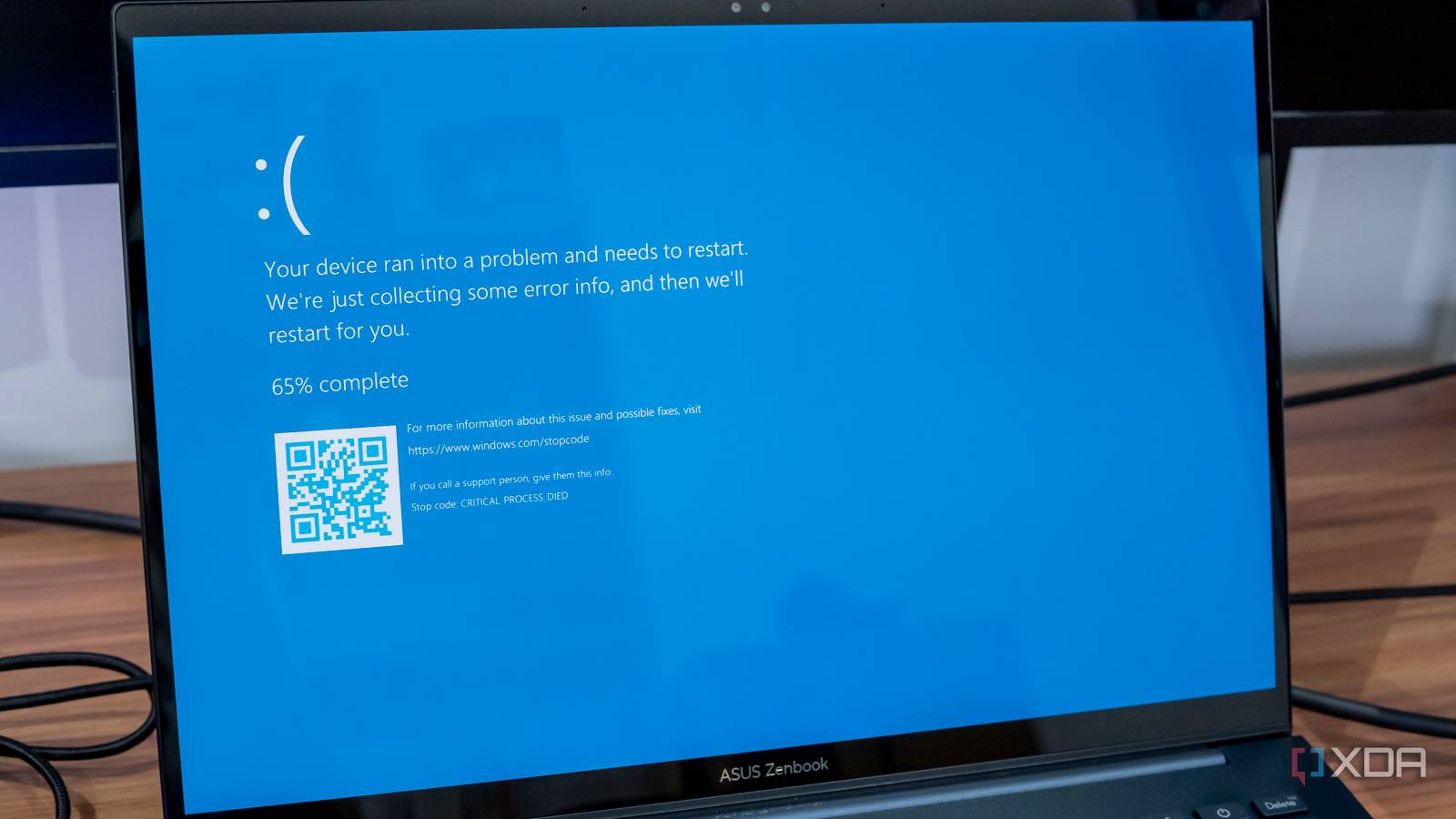
Problem 12: Random Restarts and Blue Screen
Symptoms
Stop codes:
- SYSTEM_SERVICE_EXCEPTION
- IRQL_NOT_LESS_OR_EQUAL
Fix
Run:
- mdsched.exe memory test
- chkdsk /f /r
Problem 13: Start Menu Not Working
Symptoms
Start menu won't open.
Fix
Restart Windows Explorer.
Or run:
Get-AppXPackage -AllUsers | Foreach {Add-AppxPackage -DisableDevelopmentMode -Register "$($_.InstallLocation)\AppXManifest.xml"}
Problem 14: Windows Defender Not Working
Symptoms
Security won't open.
Fix
Reset Windows Security.
Restart security services.
Problem 15: USB Devices Not Recognized
Symptoms
- Unknown device
- External drives not detected
- Keyboard/mouse stops working
Fix
Update USB drivers.
Power cycle USB controller.
Why Choose SmartSoft Solutions for Windows 11 Problems
✅ Microsoft-certified technicians
✅ 15+ years troubleshooting experience
✅ Average fix time 30–60 minutes
✅ 24/7 USA support
✅ Fix or you don't pay
Success Rate
- 94% issues resolved first session
- 15,000+ customers served
- 4.9/5 rating
Get Professional Help Now
Visit:
https://www.smartsoftsolutions.org
Support options:
- Toll-free: 1-707-708-4062
- Email: support@smartsoftsolutions.org
- Live chat: 24/7
Service Packages
Basic Fix — $49
Single issue
30-minute session
30-day support
Complete Optimization — $99
Fix all issues
Full system optimization
Remove malware
90-day support
Premium Care — $199/year
Unlimited support
Priority service
Quarterly tune-ups
The Bottom Line
Windows 11 in 2026 has serious problems—but they're all fixable.
DIY fixes solve 60–70% of issues, but complex problems require professional help.
SmartSoft Solutions has helped 15,000+ USA users fix Windows 11 problems in the past year.
Don't waste hours troubleshooting.
Visit:
https://www.smartsoftsolutions.org
SmartSoft Solutions — Your Trusted Windows 11 Experts
https://www.smartsoftsolutions.org
Serving USA customers since 2010
Microsoft Certified | BBB Accredited | 24/7 Support