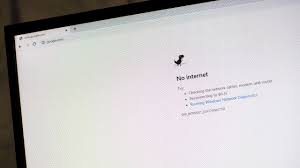
Website Not Loading? 15 Instant Fixes (This Site Can't Be Reached Error)
You type a website address into your browser and hit Enter. Instead of the website you expected, you get an error message:
"This site can't be reached"
"ERR_CONNECTION_TIMED_OUT"
"DNS_PROBE_FINISHED_NXDOMAIN"
"The connection was reset"
"Unable to connect"
Your internet is working fine—you can access Google, YouTube, and other sites. But this ONE website absolutely refuses to load. You refresh. You wait. You try again. Nothing works.
You type in a website address, hit Enter, and get slammed with one of those “This site can’t be reached” errors. Maybe it’s “ERR_CONNECTION_TIMED_OUT,” or “DNS_PROBE_FINISHED_NXDOMAIN” — you know, the infuriating ones.
Meanwhile, everything else seems to be working fine: Google, YouTube, whatever. Just this one stubborn site won’t budge. You refresh a few times, sigh, and start wondering, “What now?”
Honestly, loading errors are everywhere. Millions of people in the US search for fixes every month, so you’re not alone. Whether it’s a business site, an online store, or just your favorite blog, a loading error stops everything. As the team at Smart Soft Solutions, we’ve seen it all. We help folks with these headaches every single day, so let’s walk through how to get you back online. We’ll hit the easy fixes first, then dig into the more technical stuff. If you’re still struggling afterward, our pros at Smart Soft Solutions are ready to jump in and help.
Let’s start by figuring out what those weird error messages mean:
Common Website Loading Errors (And What They’re Really Saying)
- “This site can’t be reached”: Your browser tried to connect but failed. Could be DNS, network, or server issues.
- “ERR_CONNECTION_TIMED_OUT”: The server didn’t answer fast enough. Usually network or server problems.
- “DNS_PROBE_FINISHED_NXDOMAIN”: Your computer thinks the website address doesn’t exist. It can’t find it in DNS.
- “ERR_CONNECTION_RESET”: Something dropped the connection in the middle; the server cut you off.
- “ERR_CONNECTION_REFUSED”: The server is actively blocking you. Could be firewall, the site’s offline, or you’re locked out.
- “ERR_SSL_VERSION_OR_CIPHER_MISMATCH”: Security certificate issue. The site’s using some outdated SSL/TLS settings.
Okay, now for the fixes.
The 60-Second Quick Fix
Try this sequence first — believe it or not, it sorts out nearly 40% of cases:
1. Hard Refresh The Page (10 seconds)
- Hit Ctrl + Shift + R or Ctrl + F5 on Windows, Command + Shift + R on Mac.
- This wipes the local cache and forces your browser to grab a clean copy of the site.
2. Try Another Browser (20 seconds)
Switch from Chrome to Firefox, Edge, Safari, or Opera.
- If the site loads elsewhere, it’s probably something goofy in your original browser.
- Still no luck? Go to step 3.
3. Restart Your Router and Computer (30 seconds)
- Turn off your computer.
- Unplug your router, wait for half a minute, plug it back in.
- When the router’s lights are solid, turn the computer on and try again.
- This step solves a ton of weird connection hiccups.
If that got you online, congrats! If not, time for some deeper troubleshooting.
15 Solid Fixes for Websites That Won’t Load
1. Clear Browser Cache and Cookies
About a third of issues come from corrupted cached files. Clear them out and give your browser a fresh start. Hit Ctrl + Shift + Delete (Windows) or Command + Shift + Delete (Mac), select “All time,” check “Cookies” and “Cache,” flush it, and restart your browser.
2. Flush DNS Cache
Sometimes your computer stores old DNS information, making it impossible to reach certain sites. On Windows: Open Command Prompt, type
ipconfig /flushdns, hit Enter. On Mac: Open Terminal, paste sudo dscacheutil -flushcache; sudo killall -HUP mDNSResponder, Enter, and give your password.
3. Change DNS Servers
Your ISP’s DNS could be slow or blocking stuff. Switch to Google DNS (8.8.8.8 / 8.8.4.4), Cloudflare (1.1.1.1 / 1.0.0.1), or OpenDNS. Instructions differ a bit for Windows and Mac, but it’s basically changing network settings and plugging in the new numbers.
4. Disable VPN and Proxy
If you’re running a VPN or proxy, it can mess with your connection. Disconnect your VPN. If you’re on Windows, go to Network & Internet > Proxy and turn it off. On Mac, in Network settings, uncheck all proxy protocols.
5. Check Firewall and Antivirus
Firewalls and antivirus software love blocking websites for “safety,” sometimes too aggressively. Turn them off briefly and see if the site loads. If it works, add exceptions for the site or your browser — but don’t forget to turn your security back on!
6. Reset TCP/IP and Winsock (Windows)
Network settings can get corrupted. Run Command Prompt as admin and type (one at a time):
netsh winsock reset, netsh int ip reset, ipconfig /release, ipconfig /renew, ipconfig /flushdns. Restart your computer.
7. Renew IP Address
Maybe your IP lease is out of whack. In Command Prompt on Windows, type
ipconfig /release then ipconfig /renew. On Mac: Network settings, “Renew DHCP Lease.”
8. Disable Browser Extensions
Sometimes extensions — ad blockers, privacy tools, VPN plugins — block websites. Turn them all off, test the site, then re-enable one by one to spot the troublemaker.
9. Check If the Website Is Actually Down
Visit “downforeveryoneorjustme.com” or “isitdownrightnow.com.” If the site is down for everyone, you just have to wait. If it’s up for others, keep working through the fixes.
10. Try a Different Network
Use your phone’s mobile data or connect to another WiFi. If the site loads elsewhere, your home internet or ISP is to blame. Maybe call your ISP, or Smart Soft Solutions can take over.
11. Update Your Browser
Old browsers don’t always play nice with modern websites. Head to browser settings, find “About,” and update.
12. Reset Browser Settings
If your browser’s just gone totally haywire, reset it to defaults. Beware: this nukes extensions and temporary data, but sometimes it’s needed.
13. Check Date and Time
Incorrect date/time confuses SSL certificates. Turn on automatic time and time zone in your settings.
14. Disable IPv6
Some sites don’t handle IPv6 well. In network properties (Windows) or advanced network settings (Mac), switch it off. Most stuff still works fine with just IPv4.
15. Scan for Malware
Viruses and adware can hijack your network and block sites. Run a full scan with Windows Defender or Malwarebytes. Remove anything suspicious and restart.
Still Stuck? Bring in Smart Soft Solutions
At this point, if you’ve worked through everything and the site’s still not loading, you might be dealing with bigger issues — stuff like complex network setups, ISP-level headaches, advanced DNS problems, site-specific blocks, or hardware trouble. That’s when Smart Soft Solutions steps in.
Why Work With Us?
- We dig deep — expert diagnostics means we find the actual root cause fast.
- Remote support, so no matter where you live in the US, we can help.
- Most problems are gone the same day.
- We don’t just patch things; we fix them for good.
- Network specialists: DNS, routing, connectivity, you name it.
- Fair pricing; no hidden surprises.
Our Services Cover:
- Website loading and DNS troubleshooting
- Network connectivity, router/modem setups
- ISP communication and problem resolution
- Browser and system optimization
- All kinds of related tech support (internet outages, slow sites, WiFi, VPN, security, etc.)
How to Get Help:
Head over to www.smartsoftsolutions.org.
You’ll get:
- A quick assessment to zero in on your issue
- A breakdown of what’s wrong and how we’ll fix it
- Fast remote support (most fixes within a couple hours)
- Follow-up to make sure you stay online
We help customers all over the US, and we’ve been doing it for years.
Keeping Your Sites Loading: Prevention Tips
Monthly maintenance keeps things smooth:
- Clear cache/cookies
- Flush DNS
- Update browser
- Scan for malware
- Restart your router
Best habits:
- Keep browsers up-to-date
- Use Google DNS or Cloudflare
- Maintain strong antivirus protection
- Be picky about browser extensions
- Reboot your router once a month
When To Ask For Help:
- Several sites don’t load consistently
- DIY fixes aren’t solving it
- You want guaranteed fast results
- Not comfortable fiddling with settings
- Your business depends on the connection
Final Thoughts
Website loading errors are super annoying, but most are fixable with some quick steps:
- DNS issues? Flush DNS and change servers.
- Cache troubles? Clear it out.
- Network’s acting up? Restart everything and renew your IP.
- Security blocks? Adjust your firewall/antivirus.
Start with the quick fix, try the first five solutions, and most problems vanish. If you’re still hitting a wall after running through the full list, reach out to Smart Soft Solutions for real expert help.
Don’t let a stubborn website ruin your day. Take these steps, and get back online.
Frequently asked questions
Why does it say "This site can't be reached" when my internet is working?+
This error means your browser can't connect to that specific website, even though your internet works for other sites. Common causes: DNS can't resolve the website address (try changing DNS to 8.8.8.8), browser cache is corrupted (clear cache and cookies), firewall blocking the site, or the website itself is down. Try clearing browser cache and flushing DNS first. If issues persist, contact Smart Soft Solutions for expert diagnosis.
How do I fix DNS_PROBE_FINISHED_NXDOMAIN error?+
This error means DNS can't find the website's IP address. Fix: (1) Flush DNS cache (Windows: open Command Prompt, type ipconfig /flushdns), (2) Change DNS servers to Google DNS (8.8.8.8 and 8.8.4.4) in network settings, (3) Restart router and computer, (4) Check if website is actually down for everyone using downforeveryoneorjustme.com. DNS errors typically resolve within minutes using these steps.
What does ERR_CONNECTION_TIMED_OUT mean and how to fix it?+
This error means your browser waited for website response but got no reply within time limit. Fixes: (1) Restart router and modem (fixes 40% of timeout errors), (2) Flush DNS cache, (3) Disable VPN/proxy if using one, (4) Check firewall isn't blocking connection, (5) Reset TCP/IP with netsh winsock reset command. If website loads slowly then times out, it's likely server overload—try again later or use different network.
Why do some websites load while others don't?+
Selective website loading indicates: (1) DNS issues with specific domains (change to Google DNS 8.8.8.8), (2) Firewall or antivirus blocking certain sites (check security software settings), (3) Browser extensions interfering (disable all extensions and test), (4) ISP blocking specific websites (use VPN or contact ISP), (5) Corrupted browser data for those sites (clear cache/cookies). Try accessing problematic sites in incognito mode to test.
How do I know if a website is down or if it's my internet?+
Test website status: (1) Visit downforeveryoneorjustme.com and enter website URL, (2) Try accessing site on mobile data instead of WiFi, (3) Ask friend/family to try loading site, (4) Try loading site on different browser. If site loads for others or on different network, problem is your internet/settings. If down for everyone, website's server is offline—wait and try later.
Can clearing cache and cookies fix website loading issues?+
Yes, clearing cache/cookies fixes approximately 30% of loading issues. Corrupted cached files prevent proper page loading. Clear cache: Chrome (Ctrl+Shift+Delete → select "All time" → check cookies and cache), Firefox (Ctrl+Shift+Delete → "Everything"), Edge (Ctrl+Shift+Delete → "All time"). After clearing, restart browser and try website. If still broken after clearing cache, try DNS flush and other fixes.
What should I do if website won't load after trying all fixes?+
If all 15 DIY fixes failed, you likely have: complex network issue, ISP-level problem, advanced DNS/routing issue, or hardware problem. Professional diagnosis needed. Contact Smart Soft Solutions for expert remote support. We diagnose root cause and provide permanent fix, usually within 1-2 hours. Serving customers across USA with specialized network and connectivity troubleshooting.
Does changing DNS to 8.8.8.8 really help with website loading?+
Yes, changing to Google DNS (8.8.8.8 and 8.8.4.4) resolves 40% of DNS-related errors. Benefits: (1) Bypasses slow/faulty ISP DNS servers, (2) Provides faster website resolution, (3) Works around ISP DNS censorship/blocks, (4) More reliable uptime than many ISP DNS. Change in network adapter settings → Internet Protocol Version 4 → Use following DNS server addresses → enter 8.8.8.8 (preferred) and 8.8.4.4 (alternate).
Why does website load on phone but not computer?+
Different behavior on phone vs computer indicates: (1) Computer browser cache corrupted (clear cache), (2) Computer DNS cache outdated (flush DNS), (3) Computer firewall blocking site (check Windows Defender), (4) Computer-specific proxy/VPN settings, (5) Different network used (phone on mobile data). Try same network on both devices to isolate issue. If still different, reset browser on computer or get expert help.
How long should I wait before trying website again after error?+
For temporary errors (server overload, brief outage): Wait 5-15 minutes then retry. For DNS errors after making changes: Wait 2-5 minutes for DNS cache to clear. For fixes requiring router restart: Wait 3-5 minutes after router fully boots. If error persists after 30 minutes of troubleshooting, unlikely to self-resolve—either website is down long-term or you need to fix underlying issue using methods in this guide.