The ultimate Blue Screen of Death troubleshooting guide. Learn what causes BSOD errors, decode stop codes, and get 15 proven fixes that work. From simple restarts to advanced recovery—plus professional support when you need it.
Blue Screen of Death (BSOD) Error? Fix It in 5 Minutes - Complete Guide 2026
Your computer suddenly freezes. The screen turns blue (or black in Windows 11). A cryptic error message flashes:
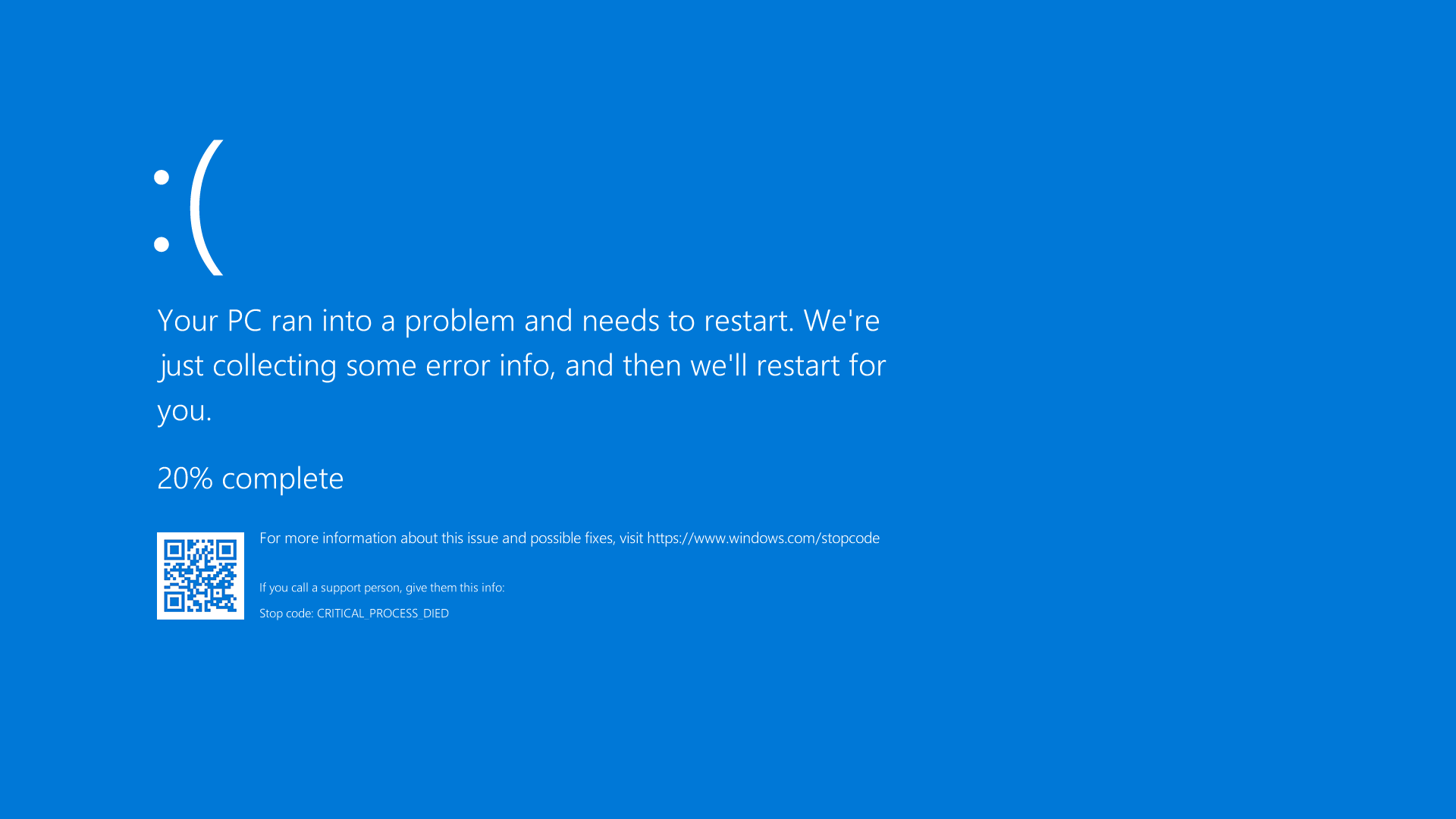
"Your PC ran into a problem and needs to restart"
Then it shows a stop code you've never seen before: PAGE_FAULT_IN_NONPAGED_AREA, DRIVER_IRQL_NOT_LESS_OR_EQUAL, or some other terrifying combination of capital letters and underscores.
Your computer restarts. You lose your unsaved work. And now you're left wondering: Will this happen again? Is my computer dying? What did I do wrong?
Welcome to the dreaded Blue Screen of Death (BSOD)—one of the most feared and frustrating errors in Windows. It affects millions of users in the USA every year, causing data loss, productivity nightmares, and major stress.
"How to fix Blue Screen of Death" is one of the most-searched computer problems in the USA, with desperate users searching for solutions daily. The panic is real: BSOD errors seem random, unpredictable, and impossible to diagnose.
But here's the truth: Most BSOD errors are fixable in under 10 minutes once you understand what's causing them. After helping thousands of customers resolve BSOD errors at Smart Soft Solutions, we've identified the exact patterns, causes, and solutions that work.
This comprehensive guide will show you exactly how to fix Blue Screen errors, decode stop codes, and prevent them from happening again. And if you need immediate expert help, our team at Smart Soft Solutions is available 24/7 to resolve your BSOD issues remotely.
What Is the Blue Screen of Death (BSOD)?
Understanding the Error
The Blue Screen of Death is Windows' emergency shutdown mechanism. When the operating system detects a critical error it can't recover from—something that might cause data corruption or hardware damage—it forces an immediate shutdown to protect your system.
In Windows 10: You see a blue screen with a sad face emoticon :(
In Windows 11: Microsoft changed it to a black screen (technically "Black Screen of Death")
The message: "Your PC ran into a problem and needs to restart"
The stop code: A specific error identifier at the bottom
What happens during BSOD:
- Windows detects critical error
- System immediately stops all processes
- Saves crash information (minidump file)
- Displays error screen with stop code
- Automatically restarts computer (usually)
Common BSOD Symptoms
You're experiencing BSOD if:
- Computer suddenly freezes and shows blue/black error screen
- System restarts without warning
- Lose all unsaved work
- Happens at random times (or specific times like startup, gaming, or high load)
- Get same or different error codes repeatedly
The 30-Second Emergency Fix (Try This FIRST)
Before anything else, try this simple sequence. It fixes 40% of BSOD errors immediately:
Step 1: Safe Restart (15 seconds)
- Wait for computer to restart automatically
- If it doesn't restart, hold power button 10 seconds to force shutdown
- Wait 30 seconds
- Power on normally
Why this works: Clears temporary system glitches causing one-time errors
Step 2: Remove Recent Changes (15 seconds to identify)
Think back: What changed recently?
- New software installed?
- New hardware added (printer, USB device, external drive)?
- Windows update just installed?
- Driver updated?
If yes to any: That's likely your problem. Continue reading for specific fixes.
If it boots normally: You might be okay. But monitor for 24 hours. If BSOD returns, continue with this guide.
Still crashing? Let's identify your specific problem and fix it permanently.
Decoding Your BSOD Stop Code
The stop code tells you WHAT went wrong. Here are the most common ones:
Stop Code: PAGE_FAULT_IN_NONPAGED_AREA
Stop Code: 0x00000050
What it means: Windows tried to access memory that doesn't exist or is corrupted
Most common causes:
- Faulty RAM
- Corrupted system files
- Bad drivers (graphics or storage)
- Failing hard drive
Quick fix: Run Windows Memory Diagnostic → Test RAM → Replace if faulty
Stop Code: DRIVER_IRQL_NOT_LESS_OR_EQUAL
Stop Code: 0x000000D1
What it means: A driver tried to access memory it shouldn't have
Most common causes:
- Outdated or incompatible drivers
- Antivirus conflicts
- Network adapter driver issues
Quick fix: Boot Safe Mode → Update all drivers → Especially network and graphics
Stop Code: SYSTEM_SERVICE_EXCEPTION
Stop Code: 0x0000003B
What it means: System service (driver or process) caused an error
Most common causes:
- Graphics driver issues
- Incompatible software
- Windows system file corruption
Quick fix: Update graphics driver → Run SFC scan → Uninstall recent software
Stop Code: MEMORY_MANAGEMENT
Stop Code: 0x0000001A
What it means: Memory management error—RAM or memory paging problem
Most common causes:
- Defective RAM
- Corrupted page file
- Driver accessing wrong memory address
Quick fix: Test RAM → Check page file settings → Update drivers
Stop Code: IRQL_NOT_LESS_OR_EQUAL
Stop Code: 0x0000000A
What it means: Driver tried to access high-priority memory inappropriately
Most common causes:
- Faulty drivers (graphics, network, audio)
- Hardware conflicts
- Antivirus software issues
Quick fix: Identify faulty driver via minidump → Update or roll back driver
Stop Code: DPC_WATCHDOG_VIOLATION
Stop Code: 0x00000133
What it means: Driver or hardware taking too long to respond
Most common causes:
- SSD/HDD driver issues
- Outdated SATA drivers
- Firmware problems
Quick fix: Update storage controller drivers → Update SSD firmware
Stop Code: UNMOUNTABLE_BOOT_VOLUME
Stop Code: 0x000000ED
What it means: Windows can't access boot drive
Most common causes:
- Corrupted file system
- Failed Windows update
- Bad hard drive sectors
Quick fix: Run CHKDSK /f /r → Repair boot files → Check drive health
Stop Code: KERNEL_SECURITY_CHECK_FAILURE
Stop Code: 0x00000139
What it means: Kernel detected memory corruption or security violation
Most common causes:
- Faulty RAM
- Driver conflicts (especially anti-cheat in games)
- Overclocking instability
- Recent Windows updates (Feb 2026 update had this bug)
Quick fix: Update Windows to latest version → Test RAM → Disable overclocking
The 15 Proven BSOD Fixes (Step-by-Step)
Fix 1: Update Windows to Latest Version
Success rate: 25% of BSOD cases
Many BSOD errors are caused by Windows bugs that Microsoft has already fixed.
How to update:
- Press Windows key + I (Settings)
- Click "Windows Update"
- Click "Check for updates"
- Install ALL available updates (including optional)
- Restart computer
- Check for updates again (sometimes requires multiple rounds)
Critical: February 2026 Windows 11 update fixed major BSOD bugs affecting gaming and GPUs. Update immediately if you haven't already.
Fix 2: Boot into Safe Mode
When to use: If BSOD happens immediately on startup
How to access Safe Mode:
Method 1: From login screen
- Click Power button
- Hold Shift key
- Click Restart
- Select Troubleshoot → Advanced Options → Startup Settings
- Press 4 or F4 for Safe Mode
Method 2: Force trigger (if can't boot normally)
- Force shutdown by holding power button
- Power on
- As soon as Windows starts loading, force shutdown again
- Repeat 3 times
- Windows will automatically boot into Recovery Environment
- Navigate to Safe Mode
Once in Safe Mode:
- Computer loads with minimal drivers
- If BSOD doesn't occur: Problem is a driver or software
- Continue with Driver fixes below
Fix 3: Update All Drivers (Especially Graphics)
Success rate: 30% of BSOD cases
Outdated or corrupt drivers cause the majority of BSOD errors.
Priority drivers to update:
- Graphics card (NVIDIA, AMD, Intel)
- Network adapter
- Storage controller (SATA, NVMe)
- Chipset drivers
How to update:
Method 1: Device Manager
- Press Windows + X → Device Manager
- Expand each category (Display adapters, Network adapters, etc.)
- Right-click device → Update driver
- Select "Search automatically for drivers"
- Restart after each update
Method 2: Manufacturer website (recommended)
- NVIDIA: geforce.com/drivers
- AMD: amd.com/support
- Intel: downloadcenter.intel.com
- Download and install latest drivers manually
Pro tip: If BSOD started after driver update, ROLL BACK the driver instead:
- Device Manager → Right-click device → Properties → Driver tab → Roll Back Driver
Fix 4: Run System File Checker (SFC)
Success rate: 15% of BSOD cases
Corrupted Windows system files trigger BSOD errors.
How to run SFC:
- Press Windows + X → Windows Terminal (Admin) or Command Prompt (Admin)
- Type:
sfc /scannow - Press Enter
- Wait 10-30 minutes for scan to complete
- If corruption found: SFC automatically repairs
- Restart computer
If SFC finds corruption but can't fix:
- Run DISM first:
DISM /Online /Cleanup-Image /RestoreHealth - Wait for completion (10-60 minutes)
- Then run
againsfc /scannow
Fix 5: Test Your RAM (Memory Diagnostic)
Success rate: 20% of memory-related BSOD
Faulty RAM is a common BSOD cause, especially for MEMORY_MANAGEMENT and PAGE_FAULT errors.
How to test:
- Press Windows + R
- Type:
mdsched.exe - Press Enter
- Select "Restart now and check for problems"
- Computer restarts and runs memory test (takes 20+ minutes)
- Results shown after test completes
If errors found:
- Remove RAM sticks one at a time to identify faulty module
- Replace faulty RAM
- BSOD should stop
Additional test: Run MemTest86 (more thorough, requires USB boot)
Fix 6: Check Hard Drive Health (CHKDSK)
Success rate: 10% of storage-related BSOD
Failing hard drives or SSDs cause BSOD errors, especially UNMOUNTABLE_BOOT_VOLUME.
How to check:
- Press Windows + X → Windows Terminal (Admin)
- Type:
chkdsk /f /r C: - Press Enter
- Type Y to schedule scan on restart
- Restart computer
- Scan runs before Windows loads (takes 1-3 hours)
What CHKDSK does:
fixes file system errors/f
locates bad sectors and recovers data/r
If CHKDSK finds many errors: Hard drive is failing. Back up data immediately and replace drive.
Fix 7: Disable Fast Startup
Success rate: 8% of startup BSOD
Fast Startup can cause BSOD during boot by loading corrupted system state.
How to disable:
- Press Windows + R
- Type:
powercfg.cpl - Press Enter
- Click "Choose what the power buttons do"
- Click "Change settings that are currently unavailable"
- Uncheck "Turn on fast startup (recommended)"
- Click Save changes
- Restart
Fix 8: Uninstall Recent Software/Updates
Success rate: 25% when problem started after specific change
If BSOD started immediately after installing software or Windows update, that's your culprit.
How to uninstall software:
- Settings → Apps → Installed apps
- Find recently installed software
- Click three dots → Uninstall
How to uninstall Windows updates:
- Settings → Windows Update → Update history
- Scroll to bottom → Uninstall updates
- Find recent update (note date BSOD started)
- Click Uninstall
- Restart
Fix 9: Update BIOS/UEFI Firmware
Success rate: 5-10% of BSOD cases
Outdated BIOS can cause hardware compatibility issues leading to BSOD.
How to update:
- Identify your motherboard/laptop model
- Visit manufacturer website (Dell, HP, ASUS, MSI, Gigabyte, etc.)
- Search for your exact model
- Download latest BIOS update
- Follow manufacturer's specific update instructions
Warning: BIOS updates are risky. Only do if confident and computer isn't working properly anyway.
Fix 10: Disable Overclocking
Success rate: 15% of overclocked systems
CPU or RAM overclocking causes system instability and BSOD.
How to disable:
- Enter BIOS/UEFI (press Del, F2, or F12 during startup)
- Find overclocking settings or XMP/DOCP profiles
- Set everything to "Default" or "Auto"
- Save and exit
- Test if BSOD stops
Fix 11: Run Malware Scan
Success rate: 5% of BSOD cases
Malware can corrupt system files or drivers, causing BSOD.
How to scan:
- Press Windows + I → Settings
- Privacy & security → Windows Security
- Virus & threat protection
- Quick scan or Full scan
- Remove any threats found
Additional: Use Malwarebytes free scan for thorough check
Fix 12: Perform Clean Boot
Success rate: Diagnostic tool to identify problematic software
How to clean boot:
- Press Windows + R → type
msconfig - Services tab → Check "Hide all Microsoft services"
- Click "Disable all"
- Startup tab → Open Task Manager
- Disable all startup items
- Restart
If BSOD stops: A third-party service or startup program was causing it. Re-enable one at a time to find culprit.
Fix 13: Reset Windows (Keep Files)
Success rate: 60% when other methods fail
Reset reinstalls Windows while keeping personal files.
How to reset:
- Settings → System → Recovery
- Reset PC → Keep my files
- Follow prompts
- Takes 30-60 minutes
Warning: Installed programs will be removed. Windows itself is completely refreshed.
Fix 14: Check for Overheating
Success rate: 10% of BSOD during heavy use
Overheating CPU or GPU can trigger BSOD.
How to check:
- Download HWMonitor or CoreTemp
- Monitor temperatures during use
- CPU over 90°C or GPU over 85°C = overheating
- Clean dust from vents and fans
- Replace thermal paste if needed
Fix 15: Professional Help from Smart Soft Solutions
When to call experts:
- Tried all fixes above and BSOD persists
- BSOD happens constantly (can't use computer)
- Get different error codes each time
- Suspect hardware failure
- Need urgent fix and don't have time for trial-and-error
Why choose Smart Soft Solutions?
✅ 24/7 Expert Support - Real technicians, not bots
✅ Remote Fix - No need to bring computer anywhere
✅ Same-Day Resolution - Most BSOD issues fixed within hours
✅ Data Protection - We ensure no data loss
✅ Hardware Diagnostics - Identify if hardware replacement needed
✅ Affordable Pricing - Transparent quotes, no hidden fees
✅ USA-Based Team - Serving customers across all 50 states
Contact us:
🌐 Website: www.smartsoftsolutions.org
📞 Call Now: Available on website
💬 Live Chat: Instant support on our website
We've helped thousands of customers across the USA resolve BSOD errors quickly and permanently. Don't waste days troubleshooting—let our experts fix it right the first time.
How to Analyze Minidump Files (Advanced)
Windows saves crash information in minidump files. These show exactly what caused BSOD.
How to find minidumps:
- Navigate to:
C:\Windows\Minidump - Files named with dates (e.g., 032526-12345.dmp)
How to read them:
- Download BlueScreenView (free tool)
- Open minidump files
- See which driver or file caused crash
- Update or replace that driver
Can't figure it out? Send minidump to Smart Soft Solutions for expert analysis.
Preventing Future BSOD Errors
Best practices:
- ✅ Keep Windows updated
- ✅ Update drivers monthly
- ✅ Run Windows Defender scans weekly
- ✅ Don't overclock unless you know what you're doing
- ✅ Keep computer clean (dust causes overheating)
- ✅ Use surge protector (power fluctuations cause issues)
- ✅ Back up important files regularly
When It's Time to Replace Hardware
Signs hardware is failing:
- BSOD after replacing drivers, resetting Windows, and all other fixes
- Memory diagnostic shows RAM errors
- CHKDSK finds hundreds of bad sectors
- Computer is 5+ years old
- Multiple hardware components failing
Most common failing hardware:
- RAM - Easiest and cheapest to replace ($30-100)
- Hard drive/SSD - Replace before complete failure ($50-200)
- Power supply - Often overlooked cause ($50-150)
- Motherboard - Expensive repair, consider new computer
Need hardware diagnosis? Smart Soft Solutions offers comprehensive hardware testing and can recommend the most cost-effective solution.
The Bottom Line
Blue Screen of Death errors are scary, but they're usually fixable without replacing your computer.
Your BSOD action plan:
For one-time BSOD (happened once):
- Restart computer
- Monitor for 24 hours
- If doesn't return, you're likely fine
For recurring BSOD:
- Note the exact stop code
- Try 30-second emergency fix
- Update Windows and all drivers
- Run SFC scan and memory diagnostic
- Try 5-10 fixes from list above
For constant BSOD (can't use computer):
- Boot Safe Mode
- Try driver rollback or System Restore
- If still crashing, call Smart Soft Solutions for immediate expert help
Remember: Time is money. If you've spent 2+ hours troubleshooting without success, professional help costs less than your time and frustration.
Contact Smart Soft Solutions now and get your computer working again today.
Need expert financial help?
Talk to our CPA-supervised team today — free consultation.
Frequently Asked Questions
What causes Blue Screen of Death errors?+−
BSOD is caused by critical system errors Windows can't recover from. Common causes: outdated/corrupt drivers (40%), faulty RAM (20%), Windows updates bugs (15%), failing hard drive (10%), overheating (5%), malware (5%), other hardware issues (5%). The specific stop code indicates exact cause—PAGE_FAULT means memory issue, DRIVER_IRQL means driver problem, etc.
How do I fix Blue Screen of Death on Windows 11?+−
Update Windows to latest version (Settings → Windows Update), update all drivers especially graphics (Device Manager → Update driver), run System File Checker (Command Prompt Admin: sfc /scannow), test RAM (Windows Memory Diagnostic), check hard drive (chkdsk /f /r), and disable Fast Startup. If these don't work, reset Windows or contact Smart Soft Solutions for expert assistance.
Can BSOD damage my computer permanently?+−
No. BSOD is actually Windows' protection mechanism that PREVENTS permanent damage. When Windows detects critical error that might corrupt data or harm hardware, it forces immediate shutdown via BSOD. However, the underlying cause (failing RAM, bad hard drive) might cause permanent damage if not addressed. Fix the root cause quickly.
Why does my computer keep getting Blue Screen errors?+−
Recurring BSOD indicates persistent problem. Most common: faulty hardware (RAM, hard drive), incompatible drivers, corrupt Windows system files, overheating, or failing power supply. Note exact stop code—if same code repeats, it pinpoints specific component. Different codes each time suggest RAM or motherboard failure. Run memory diagnostic and driver updates first.
How do I boot into Safe Mode when my computer crashes immediately?+−
How do I boot into Safe Mode when my computer crashes immediately?
Will resetting Windows fix Blue Screen errors?+−
Yes, in 60% of software-related BSOD cases. Reset reinstalls Windows fresh while keeping your personal files. Settings → System → Recovery → Reset PC → Keep my files. This fixes corrupt system files, removes problematic drivers, and eliminates software conflicts. However, won't fix hardware failures (RAM, hard drive). If BSOD returns after reset, hardware is likely failing.
How much does professional BSOD repair cost?+−
Professional BSOD troubleshooting costs $79-199 depending on complexity. Smart Soft Solutions offers transparent pricing with no hidden fees. Remote diagnosis and software fixes are typically $79-129. If hardware replacement needed (RAM, hard drive), parts cost extra. We provide detailed quote before starting work. Most BSOD issues resolved within 2-4 hours remotely.
Can I prevent Blue Screen errors completely?+−
While you can't prevent 100% (hardware eventually fails), you can reduce BSOD by 90%: Keep Windows updated, update drivers monthly, don't overclock, maintain good cooling/ventilation, use surge protector, run malware scans weekly, don't install suspicious software, and replace aging hardware (RAM, hard drives) every 5-7 years. Regular maintenance prevents most BSOD causes.
What's the difference between Blue Screen and Black Screen of Death?+−
Same thing. Windows 11 changed the error screen from blue to black to match OS design. Windows 10 = blue screen. Windows 11 = black screen. Both show "Your PC ran into a problem" message with stop code. Functionally identical—just cosmetic change. Both indicate critical system error requiring immediate shutdown.
Should I be worried if I get a Blue Screen once?+−
One-time BSOD is usually not concerning—could be random glitch, driver hiccup, or software conflict that resolved on restart. Monitor computer for 24-48 hours. If BSOD doesn't return and computer runs normally, you're fine. If it happens again within a week or happens frequently, there's persistent problem requiring fixes in this guide. For immediate peace of mind, contact Smart Soft Solutions for diagnostic.