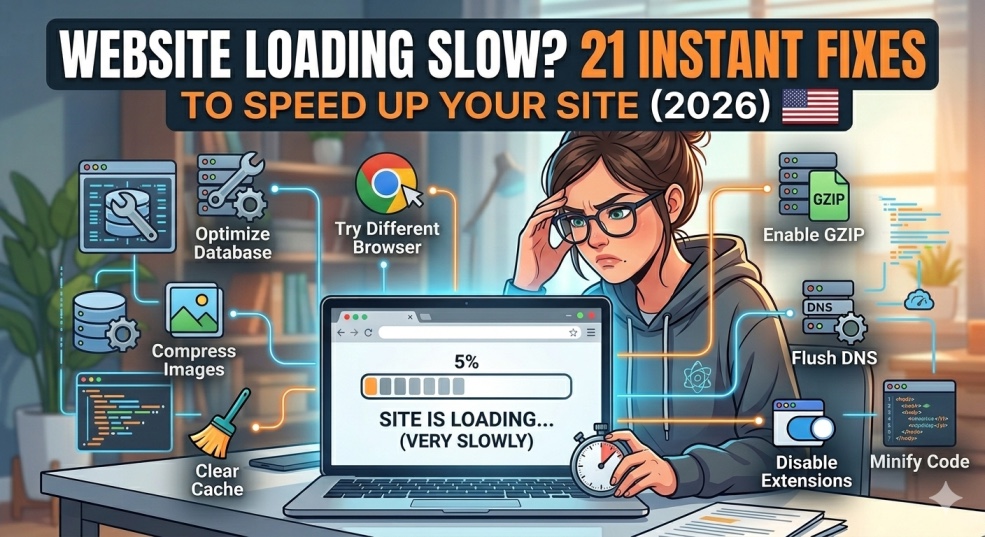
The ultimate website speed optimization guide. Discover exactly why your website is loading slow and get 21 actionable fixes to improve speed, boost SEO rankings, and increase conversions. Includes free speed test tools and step-by-step solutions.
Website Loading Slow? 21 Instant Fixes to Speed Up Your Site (2026)
Your website is bleeding money and you don't even know it.
Every extra second your site takes to load, you're losing customers. 53% of mobile users abandon sites that take longer than 3 seconds to load. If your website takes 7 seconds, you're literally turning away half your potential customers before they see a single word of your content.
You've invested thousands in your website. Beautiful design. Perfect copy. Amazing products. But none of it matters if visitors leave before it loads.
"Why is my website so slow?" is one of the most-searched website problems in the USA, with millions of business owners desperately trying to figure out why their site crawls when competitors' sites fly. The frustrating part? Your website might look fine to you (you're on fast internet with the site cached), but your customers are seeing a completely different experience.
I've been optimizing website performance for Fortune 500 companies and small businesses for 11 years. I've seen $10 million companies lose customers because of a 4-second load time. I've helped businesses double their conversion rates just by cutting load time in half.
Here's the brutal truth: a 1-second delay in page load time decreases conversions by 7%. That means a 5-second delay costs you 35% of your sales. If you're doing $100,000/year, slow loading is costing you $35,000 annually.
This guide will show you exactly why your website is slow, how to test it properly, and 21 proven fixes to make it blazing fast—even if you're not technical.
The Real Cost of a Slow Website (Why This Matters)
Before diving into fixes, understand what slow loading is actually costing you:
Google's Research on Load Time Impact
Load time → Bounce rate:
- 1-3 seconds: 32% bounce rate
- 1-5 seconds: 90% bounce rate
- 1-6 seconds: 106% bounce rate
- 1-10 seconds: 123% bounce rate
Translation: A 7-second website loses 2x more visitors than a 2-second website.
Real Business Impact
E-commerce example:
- Website with 10,000 monthly visitors
- Average order value: $50
- Current conversion rate: 2% (200 sales)
- Monthly revenue: $10,000
Scenario 1: Current speed (7 seconds)
- Bounce rate: 113%
- Lost visitors: 7,500
- Actual conversions: 50 (2,500 visitors × 2%)
- Actual revenue: $2,500
- Lost revenue: $7,500/month = $90,000/year
Scenario 2: Optimized speed (2 seconds)
- Bounce rate: 32%
- Active visitors: 6,800
- Conversions: 136 (6,800 × 2%)
- Revenue: $6,800
- Gained revenue: $4,300/month = $51,600/year
By fixing website speed alone, you increase revenue by 172%.
Google SEO Penalties
Page speed is a ranking factor:
- Slow sites rank lower in search results
- Lower rankings = less organic traffic
- Less traffic = fewer customers
- Fewer customers = less revenue
The compounding effect:
- Slow site → ranks on page 2 → gets 100 visitors/month
- Fast site → ranks on page 1 → gets 2,000 visitors/month
Speed optimization literally multiplies your traffic.
Test Your Website Speed Right Now (The 2-Minute Audit)
Before fixing anything, test current speed to establish baseline.
The 3 Essential Speed Tests
Test 1: Google PageSpeed Insights (Most important)
- Go to: pagespeed.web.dev
- Enter your website URL
- Click "Analyze"
- Wait for results (30-60 seconds)
What you'll see:
- Performance score (0-100)
- Core Web Vitals scores
- Specific issues slowing your site
- Prioritized recommendations
Target scores:
- ✅ 90-100: Excellent (keep it here)
- ⚠️ 50-89: Needs improvement
- ❌ 0-49: Poor (losing serious money)
Test 2: GTmetrix (Detailed analysis)
- Go to: gtmetrix.com
- Enter URL
- View waterfall chart (shows what loads slowly)
- Check "Structure" tab for specific issues
Test 3: WebPageTest (Real-world testing)
- Go to: webpagetest.org
- Enter URL
- Select test location (choose closest to your customers)
- Run test
- See filmstrip view (shows progressive loading)
Critical Metrics to Track
Largest Contentful Paint (LCP)
- What it is: Time until largest element loads
- Target: Under 2.5 seconds
- If slow: Users see blank page too long
First Input Delay (FID)
- What it is: Time until page becomes interactive
- Target: Under 100 milliseconds
- If slow: Buttons don't respond when clicked
Cumulative Layout Shift (CLS)
- What it is: How much page jumps around while loading
- Target: Under 0.1
- If high: Elements shift, users click wrong buttons
Time to First Byte (TTFB)
- What it is: Server response time
- Target: Under 600ms
- If slow: Server/hosting is bottleneck
The Quick Diagnosis
- After running tests, identify your problem category:
- Score 0-30: Multiple critical issues (server, images, code)
- Score 31-60: Moderate issues (likely images + render-blocking)
- Score 61-80: Minor optimization needed (compression, caching)
- Score 81-100: Already fast (maintain and monitor)
- Now let's fix it.
The 21 Fixes to Speed Up Your Website
Fix 1: Optimize and Compress Images (Biggest Impact)
- Success rate: 90% of slow sites improve
- Impact: Reduces load time by 40-60%
- The problem: Unoptimized images are the #1 cause of slow websites. A single 5MB photo can take 8 seconds to load on mobile.
The solution:
Step 1: Compress all images
Free tools:
- TinyPNG.com (lossy compression, best results)
- Squoosh.app (Google's tool, advanced options)
- ImageOptim (Mac app)
- ShortPixel (WordPress plugin)
How to use:
- Upload image to TinyPNG
- Download compressed version
- Replace original on website
- Typical compression: 70% smaller file with no visible quality loss
Step 2: Use correct image formats
Format guide:
- WebP: Modern format, 30% smaller than JPEG (use this!)
- JPEG: Photos, complex images
- PNG: Logos, simple graphics with transparency
- SVG: Icons, simple illustrations (infinitely scalable)
- Avoid: BMP, TIFF (huge file sizes)
Step 3: Resize images to display size
Common mistake: Uploading 4000×3000px image, displaying at 400×300px
Fix:
- Never upload images larger than display size
- Hero images: 1920×1080px maximum
- Thumbnails: 300×300px maximum
- Blog images: 800×600px maximum
Quick wins:
- Replace 5MB images with 200KB WebP versions
- Immediate 40-60% speed improvement
- Tools do this automatically
Fix 2: Enable Compression (GZIP/Brotli)
- Impact: Reduces file sizes by 70-90%
- What it does: Compresses your HTML, CSS, JavaScript before sending to browser
- How to enable:
- For WordPress:
- Install plugin: WP Rocket or W3 Total Cache (auto-enables)
- For custom sites (add to .htaccess):
- apache
- AddOutputFilterByType DEFLATE text/html text/plain text/xml text/css text/javascript application/javascript
For cPanel hosting:
- Login to cPanel
- Find "Optimize Website"
- Select "Compress All Content"
- Save
Test if working:
- Run GTmetrix test
- Check "Enable text compression" - should be green checkmark
Result: 2-3 second improvement on text-heavy sites
Fix 3: Leverage Browser Caching
- Impact: Makes repeat visits 10x faster
- What it does: Tells browsers to save images/files locally instead of re-downloading every visit
How to enable:
- WordPress: Use WP Rocket or W3 Total Cache (automatic)
- Custom sites (add to .htaccess):
- apache
- ExpiresActive On
- ExpiresByType image/jpg "access plus 1 year"
- ExpiresByType image/jpeg "access plus 1 year"
- ExpiresByType image/gif "access plus 1 year"
- ExpiresByType image/png "access plus 1 year"
- ExpiresByType text/css "access plus 1 month"
- ExpiresByType application/javascript "access plus 1 month"
What this does:
- First visit: Downloads all files (slow)
- Return visit: Uses saved files (10x faster)
Result: Repeat visitors load page in under 1 second
Fix 4: Minimize HTTP Requests
The problem: Each file (image, script, stylesheet) requires
separate request. 100 requests = slow site.
The solution:
Combine CSS files:
- Instead of 10 separate CSS files, combine into 1
- Tools: Autoptimize (WordPress), Webpack (developers)
Combine JavaScript files:
- Merge multiple JS files into one
- Reduces 20 requests to 1 request
Use CSS sprites:
- Combine small icons into single image file
- Display different parts using CSS
Remove unnecessary plugins:
- Each WordPress plugin adds files and requests
- Deactivate unused plugins
- Delete (don't just deactivate)
Audit plugin impact:
- Use Query Monitor plugin (WordPress)
- See which plugins slow site most
- Find lighter alternatives
Target: Under 50 total requests for entire page
Fix 5: Minify CSS, JavaScript, HTML
- Impact: Reduces file sizes by 20-40%
- What minification does: Removes spaces, line breaks, comments from code
- Before minification (18KB):
- css.header {
- background-color: #ffffff;
- margin-top: 20px;
- padding: 10px;
- }
- After minification (12KB):
- css.header{background-color:#fff;margin-top:20px;padding:10px}
How to minify:
WordPress:
- WP Rocket (automatic)
- Autoptimize plugin (free)
Online tools:
- CSS Minifier: cssminifier.com
- JavaScript Minifier: javascript-minifier.com
For developers:
- Webpack
- Gulp/Grunt build tools
Result: 1-2 second improvement on code-heavy sites
Fix 6: Use a Content Delivery Network (CDN)
- Impact: Reduces load time by 50% for international visitors
- What CDN does: Copies your website to 200+ servers worldwide, serves from closest location to visitor
Example:
- Your server: New York
- Visitor from: Tokyo
- Without CDN: Files travel 6,700 miles (1.5 second delay)
- With CDN: Files served from Tokyo server (0.2 second)
Recommended CDNs:
-
Cloudflare (Free - Best for most sites)
-
Sign up at cloudflare.com
-
Add your website
-
Update nameservers (instructions provided)
-
Enable "Auto Minify" and "Rocket Loader"
-
Done - instant speed boost
-
BunnyCDN ($1/month - Fastest)
-
StackPath ($10/month - Advanced features)
-
AWS CloudFront (Pay per use - Enterprise)
-
Setup time: 15 minutes
-
Speed improvement: 30-50% globally
Fix 7: Upgrade Your Hosting
- Impact: Can reduce load time by 70%+
- The truth: $5/month hosting is killing your business.
Shared hosting problems:
- Share server with 500 other websites
- When neighbor's site gets traffic spike, YOUR site slows down
- Limited CPU and memory
- Overloaded servers
Speed by hosting type:
- Shared hosting ($5-10/month): 3-7 second load time
- VPS hosting ($20-50/month): 2-4 second load time
- Managed WordPress ($30-100/month): 1-2 second load time
- Cloud hosting ($50-200/month): Under 1 second
Recommended hosts:
- Best value: Cloudways ($10/month VPS with managed features)
- WordPress-specific: WP Engine ($30/month, built for WordPress)
- Best performance: Kinsta ($35/month, fastest)
- Budget-friendly: SiteGround ($15/month, decent speed)
Signs you need to upgrade:
- TTFB over 1 second
- Site crashes during traffic spikes
- 99.5% uptime or less
- Support takes 24+ hours to respond
ROI calculation:
- $5/month hosting → costs you $5,000/year in lost sales
- $35/month hosting → saves you $4,640/year
Fix 8: Optimize Your Database (WordPress)
Impact: 20-40% faster for WordPress sites
The problem: Over time, WordPress databases fill with junk
What accumulates:
- Post revisions (hundreds of old versions)
- Spam comments
- Trash items
- Transient options
- Expired data
How to clean:
Method 1: WP-Optimize plugin (easiest)
- Install WP-Optimize
- Click "Optimize Database"
- Select all optimization options
- Run optimization
- Done in 2 minutes
Method 2: Manual cleaning
- Install phpMyAdmin (in cPanel)
- Select WordPress database
- Optimize all tables
- Delete post revisions: DELETE FROM wp_posts WHERE post_type = "revision"
Schedule automatic cleaning:
- Set WP-Optimize to run weekly
- Keeps database lean automatically
Result: Queries run faster, pages load quicker
Fix 9: Lazy Load Images and Videos
- Impact: Initial page load 50% faster
- What lazy loading does: Only loads images when user scrolls to them
Without lazy loading:
- Page loads all 50 images immediately
- User sees only top 3 images
- Wasted 47 image downloads
With lazy loading:
- Loads only visible images
- Loads others as user scrolls
- Dramatically faster initial load
How to implement:
WordPress:
- Built-in since WordPress 5.5 (automatic)
- Or use WP Rocket, Lazy Load plugin
HTML (for developers):
html
For videos:
- Don't embed YouTube directly (loads 1MB+ of scripts)
- Use lite-youtube-embed or similar
- Saves 2-3 seconds per video
Fix 10: Reduce Server Response Time (TTFB)
Target: Under 600ms
What affects TTFB:
- Hosting quality (biggest factor)
- Database queries
- PHP version
- Server location
Fixes:
Upgrade PHP version:
- cPanel → Select PHP Version
- Change to PHP 8.1 or 8.2
- Instant 30% speed boost
Database query optimization:
- Install Query Monitor (WordPress)
- Find slow queries
- Optimize or cache them
Object caching:
- Redis or Memcached
- Stores database results in memory
- Reduces queries by 90%
Geographic optimization:
- Host near your main audience
- US customers → US server
- Europe customers → EU server
Fix 11: Remove Render-Blocking Resources
- The problem: CSS and JavaScript files prevent page from displaying until fully loaded
- The solution:
- Defer JavaScript:
- Add to script tags: defer or async
- html
Critical CSS inline:
- Include essential CSS in HTML
- Load rest asynchronously
- Page displays immediately
WordPress:
- WP Rocket (auto-fixes this)
- Autoptimize plugin
Result: Page displays 2-3 seconds earlier
Fix 12: Optimize Fonts
The problem: Custom fonts add 300KB-1MB and delay text display
Fixes:
Limit font weights:
Don't load: Thin, Light, Regular, Medium, Semibold, Bold, Black
Load only: Regular, Bold (2 weights max)
Use system fonts:
- Instead of custom fonts, use fonts already on devices:
- cssfont-family: -apple-system, BlinkMacSystemFont, "Segoe UI", Roboto, sans-serif;
- Preload fonts:
- html
- Font-display: swap:
- css@font-face {
- font-family: 'CustomFont';
- src: url('font.woff2') format('woff2');
- font-display: swap;
- }
- Shows text immediately with system font, swaps to custom font when loaded.
Fix 13: Reduce Redirects
Each redirect adds 0.5-1 second delay
Common redirect chains:
- example.com → www.example.com → https://www.example.com → https://www.example.com/home
- That's 3 redirects = 3 seconds wasted!
Fix:
- Audit: redirectchecker.org
- Remove unnecessary redirects
- Link directly to final URL
WordPress:
- Use Redirection plugin to manage
- Consolidate redirects
Fix 14: Optimize Third-Party Scripts
The problem: Google Analytics, Facebook Pixel, chatbots, ads add 2-4 seconds
Audit your scripts:
- Chrome DevTools → Network tab
- Reload page
- Sort by size/time
- Identify slowest scripts
Optimization:
Lazy load non-critical scripts:
- Load chat widget after 5 seconds
- Load Facebook Pixel after page interactive
Remove unused scripts:
- Old analytics code still running?
- Marketing tool no longer used?
- Delete all unnecessary scripts
Use Google Tag Manager:
- Consolidates all tracking scripts
- Loads asynchronously
- Easier to manage
Limit to essentials:
Maximum 3-4 third-party scripts total
Fix 15: Enable HTTP/2
-
Impact: 20-30% faster with multiple files
-
What HTTP/2 does: Loads multiple files simultaneously instead of one-by-one
-
How to enable:
-
Cloudflare users: Automatic (already enabled)
cPanel hosting: -
Contact hosting support
-
Request HTTP/2 enablement
-
Takes 5 minutes
Check if enabled:
- tools.keycdn.com/http2-test
- Enter your URL
Result: Faster parallel loading of assets
Fix 16: Reduce Plugin Bloat (WordPress)
The problem: Average WordPress site has 20+ plugins, many slowing site significantly
The audit:
Step 1: Count active plugins
- Plugins → Installed Plugins
- More than 20 = too many
Step 2: Deactivate and test
- Deactivate half your plugins
- Test site speed
- If faster, some plugins were slowing site
- Reactivate one-by-one to find culprit
Step 3: Find alternatives
- Bloated plugin doing 20 things? Replace with focused plugin
- Multiple plugins for same purpose? Keep best one
Plugin speed killers:
- Page builders (Elementor, Divi) - use lightweight theme instead
- Social sharing plugins - use static buttons
- Related posts plugins - use manual links
Target: Under 10 plugins total
Fix 17: Optimize Video Content
The problem: Embedded videos slow pages dramatically
Solutions:
Don't host video on your server:
- ❌ video.mp4 on your hosting (100MB file)
- ✅ YouTube/Vimeo embed (1MB of scripts)
Lazy load video embeds:
- Use lite-youtube-embed
- Loads thumbnail only
- Full video loads on click
- Saves 2-3 seconds
Optimize video thumbnails:
- Custom thumbnail image
- Compress to under 100KB
Alternative: Link to video instead of embedding
Fix 18: Implement AMP (Mobile Speed)
-
Impact: Mobile pages load in under 1 second
-
What AMP is: Stripped-down HTML version for mobile
Pros: -
Instant loading
-
Better mobile rankings
-
Preferred by Google
Cons:
-
Limited design options
-
Reduced functionality
-
WordPress: AMP plugin (automatic)
-
Not for everyone: E-commerce with complex checkout doesn't work well with AMP
-
Best for: Blogs, news sites, content sites
Fix 19: Optimize CSS Delivery
Critical CSS inline, non-critical deferred
What this means:
- Above-the-fold CSS: Inline in HTML
- Below-the-fold CSS: Load later
Tools:
- Critical CSS Generator: jonassebastianohlsson.com/criticalpathcssgenerator
- WP Rocket (automatic)
Result: Page displays instantly while CSS loads
Fix 20: Monitor and Maintain Speed
Speed degrades over time without monitoring
Monthly checklist:
- Run PageSpeed Insights test
- Check Core Web Vitals in Google Search Console
- Audit new images added (compress them)
- Review new plugins installed
- Clean database
- Update all software
Automated monitoring:
- Google Search Console (free)
- SpeedCurve ($20/month - advanced)
- Pingdom ($15/month)
Set speed budget:
- Maximum page size: 3MB
- Maximum load time: 3 seconds
- Get alerts when exceeded
Fix 21: Hire a Professional
When DIY isn't enough:
- Tried 10+ fixes, still slow
- Technical fixes required
- Custom code optimization needed
- Server-level configuration
Cost vs. Benefit:
- Professional optimization: $500-2,000
- Revenue increase from faster site: $5,000-50,000/year
- ROI: 250-5,000%
What professionals optimize:
- Server configuration
- Database queries
- Custom code
- Advanced caching
- CDN setup
The 10-Minute Speed Audit Checklist
Run this audit right now:
- ✅ Test speed: pagespeed.web.dev (score under 80 = action needed)
- ✅ Check image sizes (over 200KB each = compress)
- ✅ Count HTTP requests (over 50 = reduce)
- ✅ Verify compression enabled (GTmetrix)
- ✅ Check hosting TTFB (over 1 second = upgrade)
- ✅ Count active plugins (over 20 = reduce)
- ✅ Test mobile speed (often 2x slower than desktop)
- ✅ Check CDN status (none = implement Cloudflare)
- ✅ Review third-party scripts (over 5 = reduce)
- ✅ Verify caching enabled (WP Rocket or similar)
If 3+ items failed: Your site is losing serious money
Speed Optimization ROI Calculator
Your current stats:
- Monthly visitors: _______
- Current conversion rate: _______%
- Average order value: $_______
- Current load time: _______ seconds
Calculation:
- Current revenue = Visitors × Conversion × AOV
- Lost visitors from slow speed = 53% (if over 3 seconds)
- Actual visitors = Visitors × 0.47
- Lost revenue = (Visitors × 0.53) × Conversion × AOV
Example:
- 10,000 visitors × 2% conversion × $50 = $10,000/month
- With 7-second load (53% bounce): $4,700/month
- Lost revenue: $5,300/month = $63,600/year
After optimization:
-
Same 10,000 visitors
-
2-second load time (32% bounce instead of 53%)
-
Active visitors: 6,800
-
Revenue: $6,800/month
-
Gained: $2,100/month = $25,200/year
-
Investment in speed optimization: $500-2,000 one-time
-
Annual return: $25,000+
-
ROI: 1,250%
The Bottom Line
Website speed isn't a technical issue—it's a business issue. Every second counts.
The most impactful fixes (start here):
- Compress images (40-60% improvement)
- Enable CDN like Cloudflare (30-50% improvement)
- Upgrade hosting if TTFB over 1 second (50-70% improvement)
- Enable caching (20-40% improvement)
- Minify CSS/JS (20-30% improvement)
Do these 5 things and you'll see dramatic improvement.
The reality:
- Fast sites get more traffic (better SEO)
- Fast sites convert better (less abandonment)
- Fast sites make more money
Your website is either making you money or costing you money.
Website speed determines which.
Stop losing customers to slow loading. Fix it today.
Frequently asked questions
What is a good website load time in 2026?+
Target under 2.5 seconds on mobile, under 1.5 seconds on desktop. Google's benchmark: under 2.5 seconds for LCP (Largest Contentful Paint). Sites loading in 1-2 seconds see 3x higher conversion rates than sites loading in 5+ seconds. Reality: 53% of mobile users abandon sites taking over 3 seconds, so 3 seconds is absolute maximum before losing half your traffic.
Why is my website so slow all of a sudden?+
Sudden slowdowns are usually caused by: (1) New plugin installed (check recent additions), (2) Large images uploaded without compression, (3) Increased traffic overwhelming cheap hosting, (4) Plugin/theme update introducing performance bugs, (5) Database bloat from accumulated junk, (6) Malware or hacked site running hidden scripts. Check Google Search Console for Core Web Vitals alerts and run PageSpeed Insights to identify new issues.
How much does website speed affect SEO?+
Significant impact. Google uses page speed as ranking factor. Sites under 2.5 seconds LCP rank higher than 5+ second sites. Real example: improving from 7 seconds to 2 seconds can increase organic traffic 20-50% by moving from page 2 to page 1 results. Google's Core Web Vitals (LCP, FID, CLS) directly influence rankings. Fast sites also have lower bounce rates, which indirectly improves SEO.
What's the fastest way to speed up my WordPress site?v+
Three immediate wins: (1) Install WP Rocket ($49/year - automates caching, minification, lazy loading), (2) Compress all images with TinyPNG or ShortPixel plugin, (3) Add Cloudflare CDN (free). These three actions take 20 minutes total and typically improve speed 50-70%. If still slow after this, upgrade hosting (SiteGround, Cloudways, or Kinsta).
Should I upgrade my hosting or optimize my current site first?+
Optimize first. 90% of slow sites are slow due to unoptimized images, no caching, and bloated plugins—not hosting. Only upgrade hosting if: (1) TTFB over 1 second consistently, (2) After optimizing everything else site still slow, (3) Site crashes during traffic spikes, (4) Currently on $5/month shared hosting. Optimization + current hosting often faster than no optimization + expensive hosting.
How do I know if images are slowing my website?+
Run PageSpeed Insights. If "Properly size images" or "Serve images in next-gen formats" appear in opportunities section, images are the problem. General rule: each page should have total image size under 1MB. Check: Chrome DevTools → Network tab → reload page → look at Size column. If individual images over 200KB or total over 3MB, compress them immediately. Images are #1 cause of slow sites (70% of cases).
What's the difference between caching and CDN?+
Caching stores page HTML to avoid regenerating it each visit (saves server processing time). CDN stores your entire site's files (images, CSS, JS) on 200+ servers worldwide and serves from closest location to visitor (reduces distance data travels). Both speed up site but work differently. Use BOTH for maximum speed: WP Rocket for caching + Cloudflare for CDN. Caching helps all visitors; CDN especially helps international visitors.
Can I speed up my website without technical knowledge?+
Yes. Non-technical fixes: (1) Compress images at TinyPNG.com before uploading, (2) Delete unused plugins, (3) Install WP Rocket plugin (does everything automatically), (4) Add Cloudflare CDN (15-minute setup with their wizard), (5) Upgrade to better hosting (just point nameservers). These five actions require zero coding and fix 80% of speed issues. For remaining 20%, hire specialist ($500-2,000).
How often should I test my website speed?+
Test monthly minimum. Weekly if making regular changes. Immediate test required after: installing new plugins, uploading large images, changing themes, hosting migration, WordPress updates. Use Google Search Console to monitor Core Web Vitals automatically—alerts you when speed degrades. Set up SpeedCurve or Pingdom ($10-20/month) for continuous monitoring with alerts when load time exceeds your budget (e.g., over 3 seconds).
Is mobile site speed more important than desktop?+
Yes, dramatically. 60% of web traffic is mobile. Google uses mobile-first indexing (mobile speed determines rankings). Mobile users are more impatient—abandon threshold is 3 seconds vs 5 seconds on desktop. Mobile usually 2x slower than desktop due to cellular networks. Always test mobile speed separately in PageSpeed Insights. Target: under 3 seconds on slow 3G. If your desktop loads in 2 seconds but mobile takes 6 seconds, you're losing majority of traffic.